Setting Up A New CA Monitor And API Key
Learn how to configure a new CA monitor to track your certificate infrastructure and generate the necessary API keys for administrative access. This guide ensures you can successfully set up monitoring services and securely manage your authentication credentials.
1. Navigate to your instance of CertMS
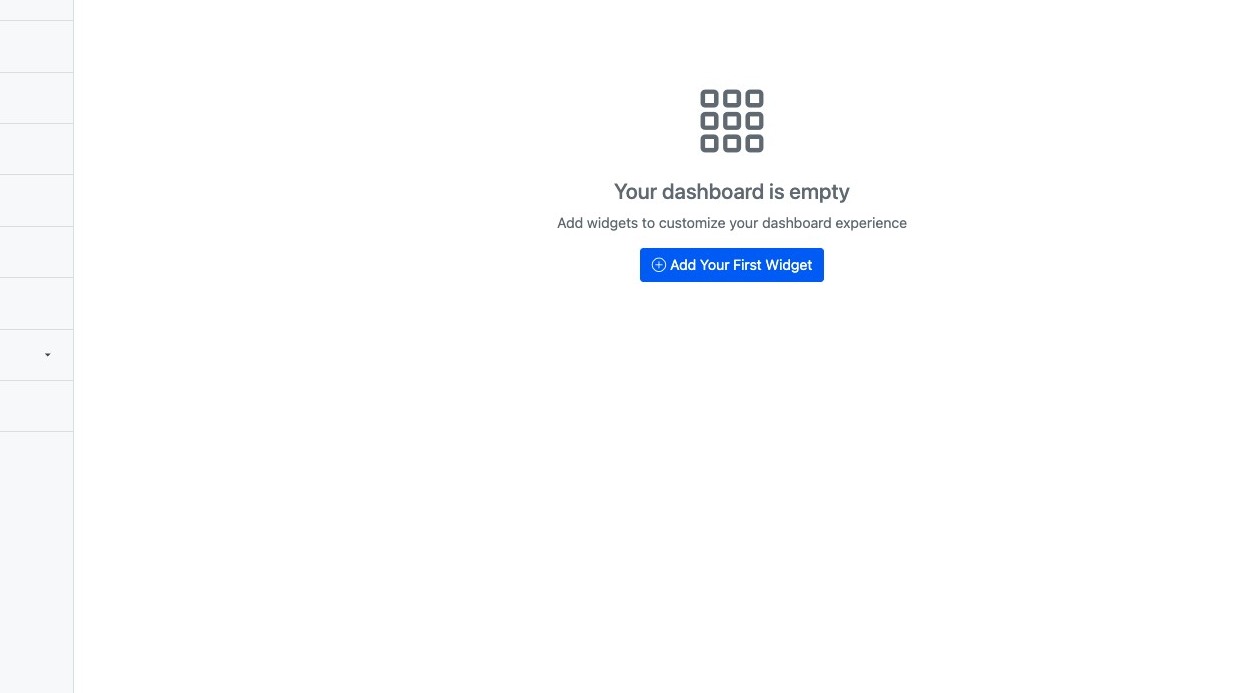
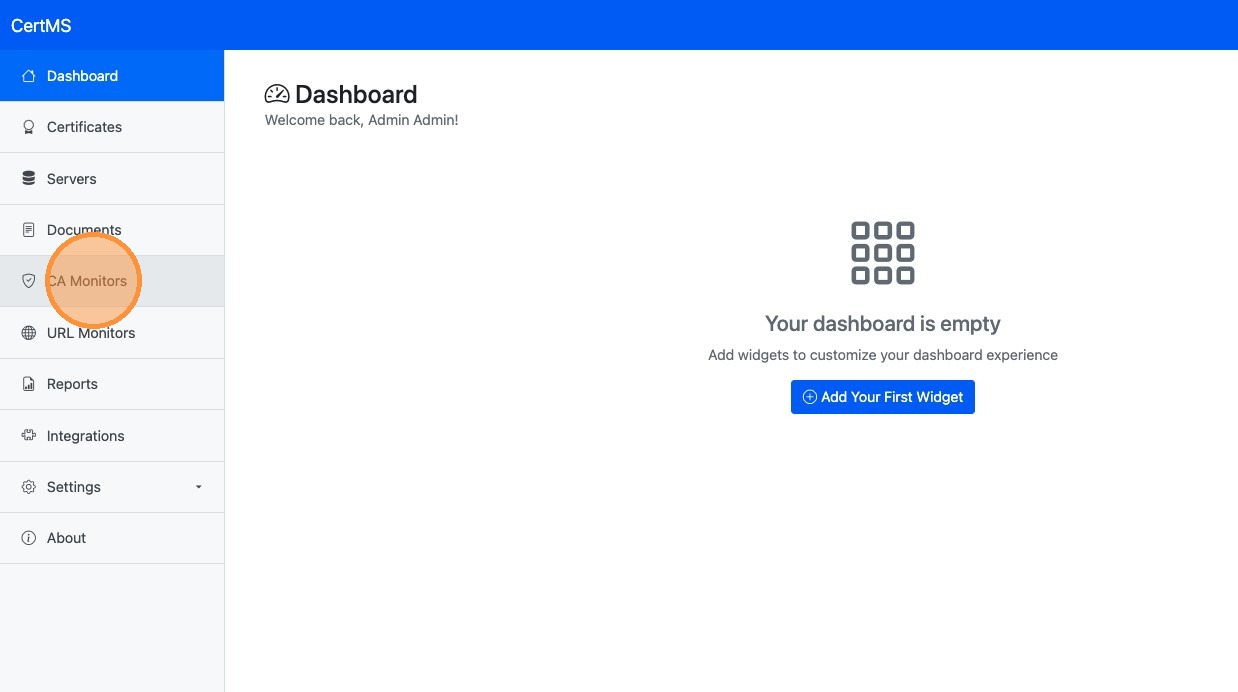
2. Navigate to CA Monitors section
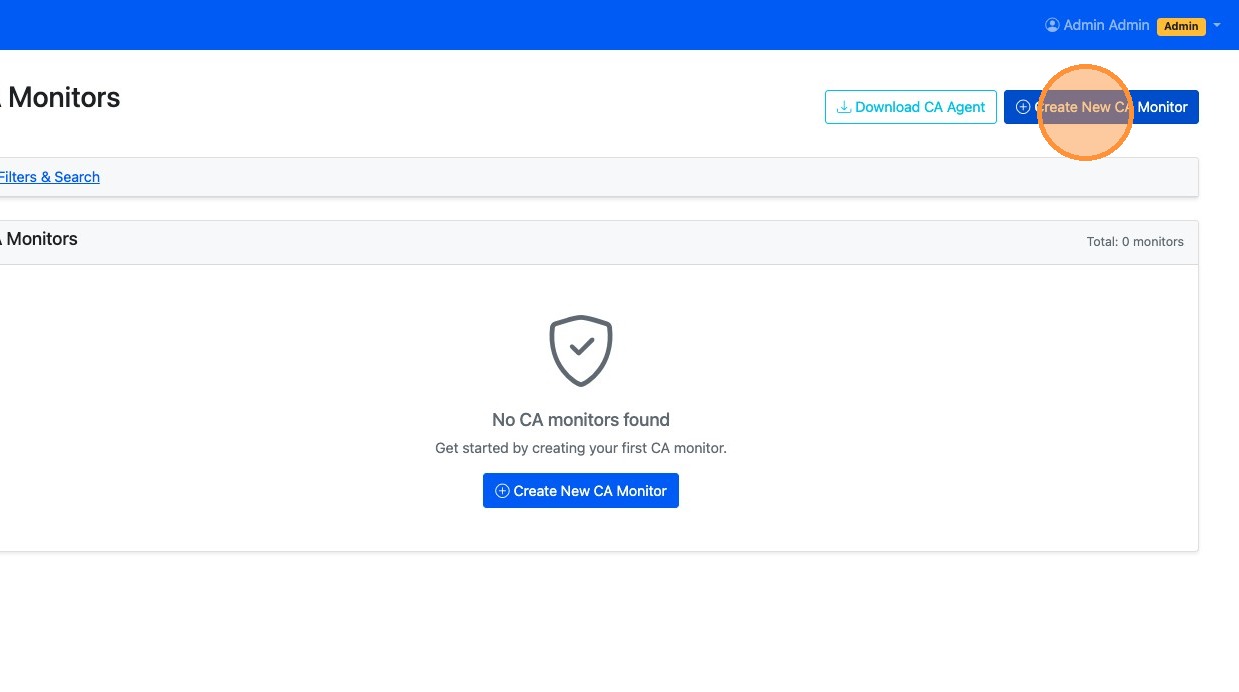
3. Click "Create New CA Monitor"
4. Type a friendly name in the Name field
5. Enter the FQDN of your Sub CA as the CA Server FQDN
6. Type name of the Certificate template you want to monitor in the Certificate Template field
7. Check Enable monitor to begin certificate checks
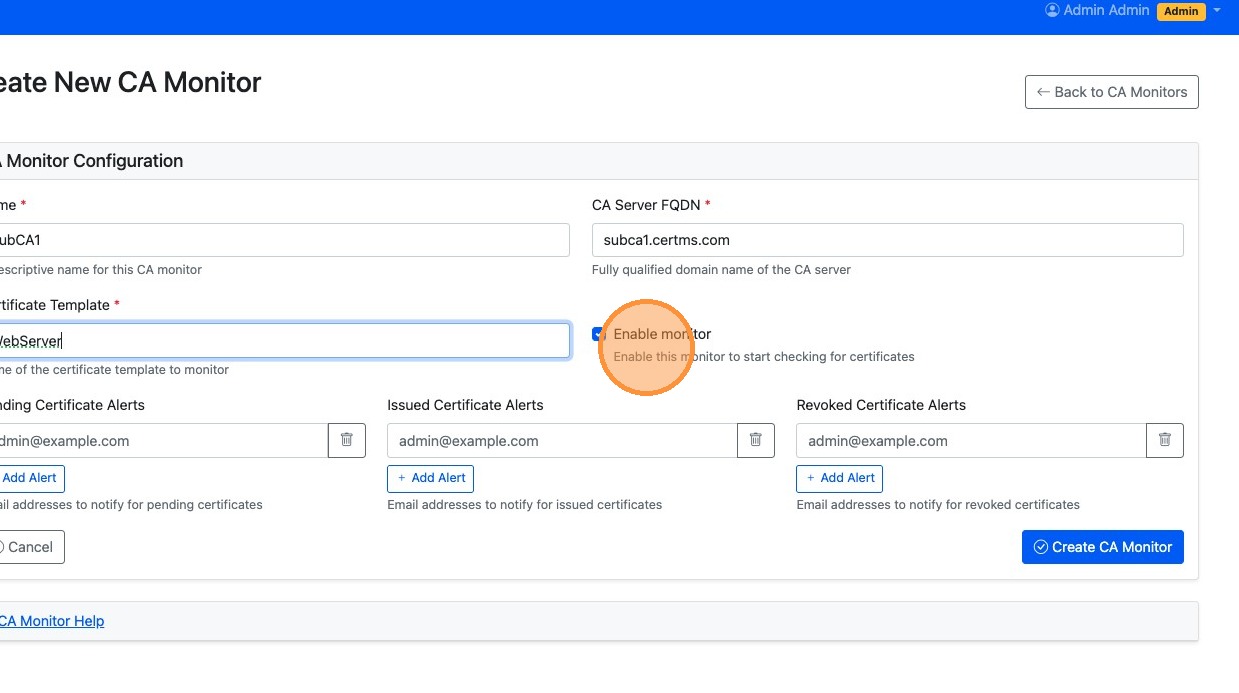
8. Enter in any email address you want in the different alerts fields to get notifications
9. Click "Create CA Monitor"
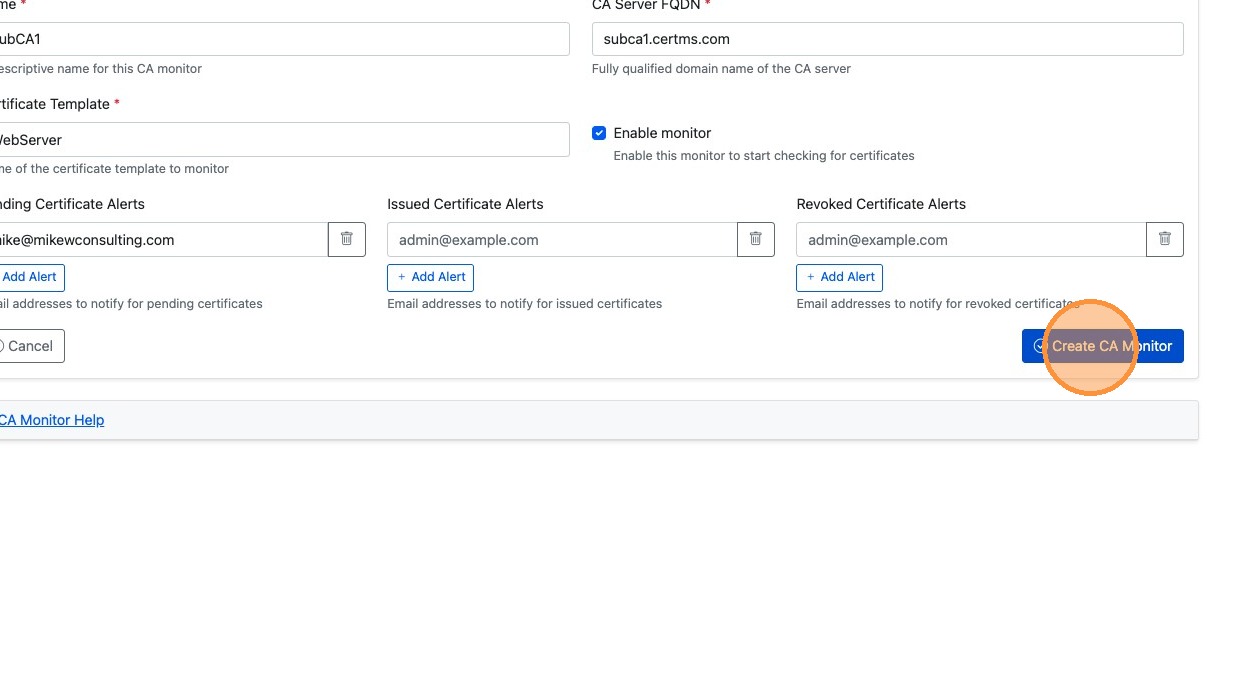
10. Be sure to copy down the ID of the CA Monitor as you will need it later
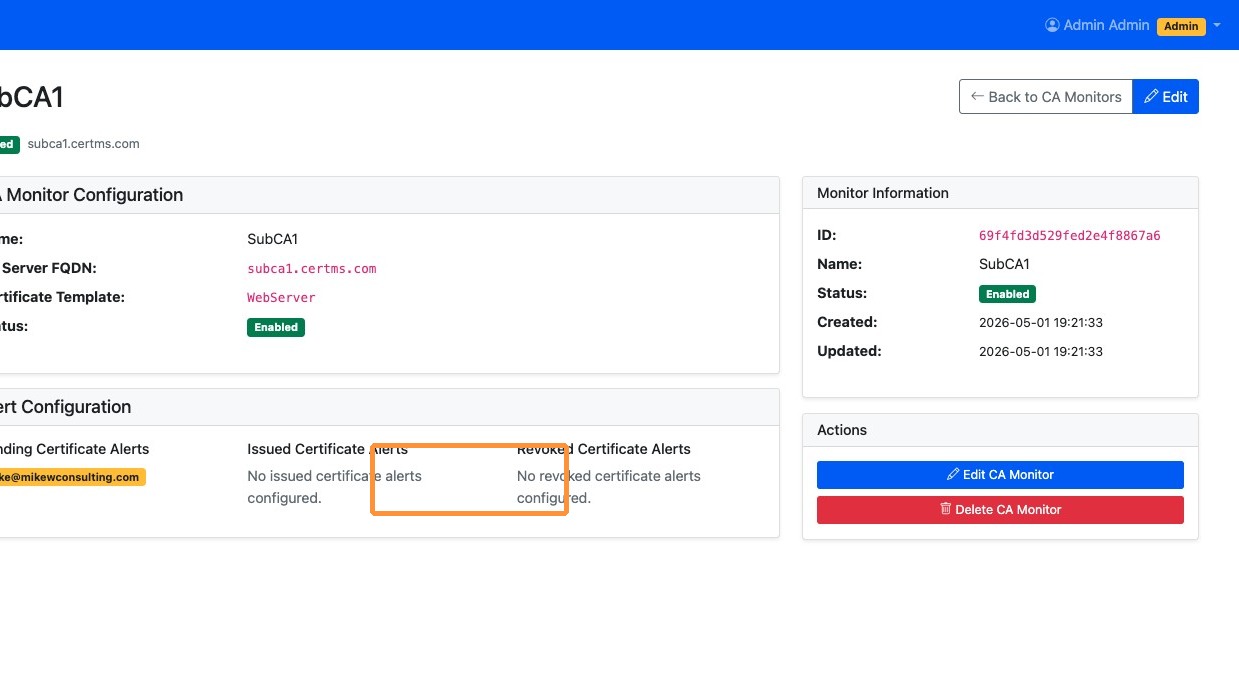
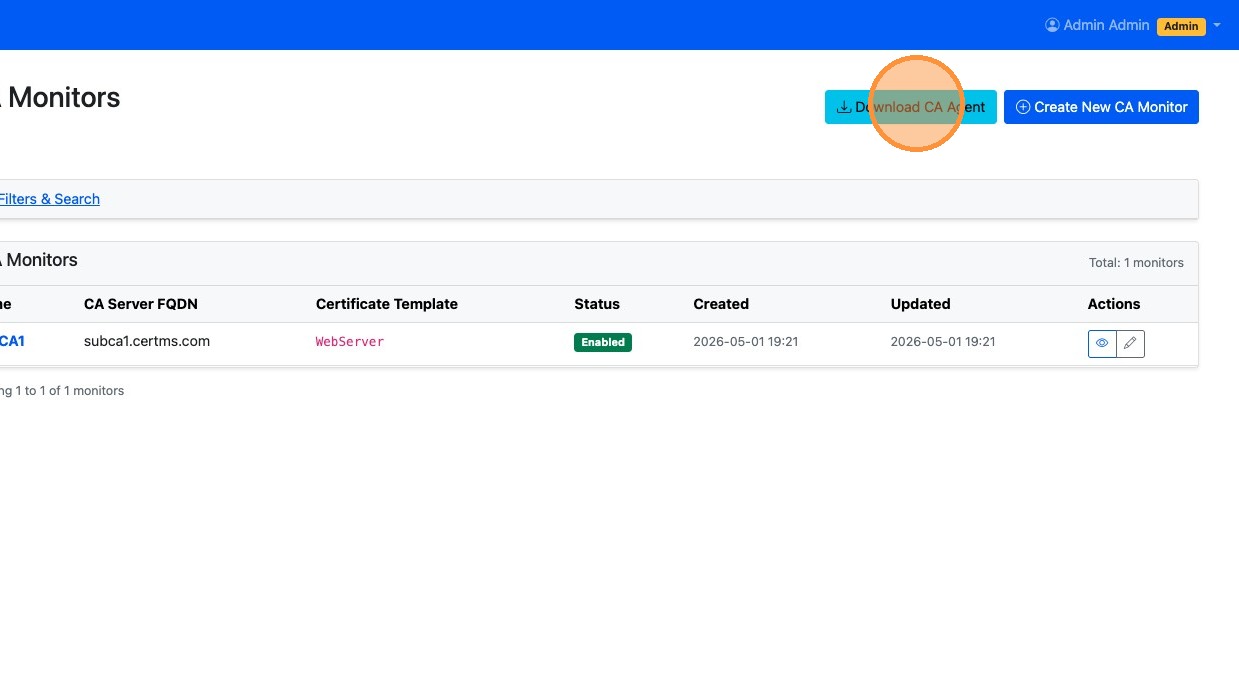
11. After the CA is added click "Download CA Agent" to get the Agent PowerShell script
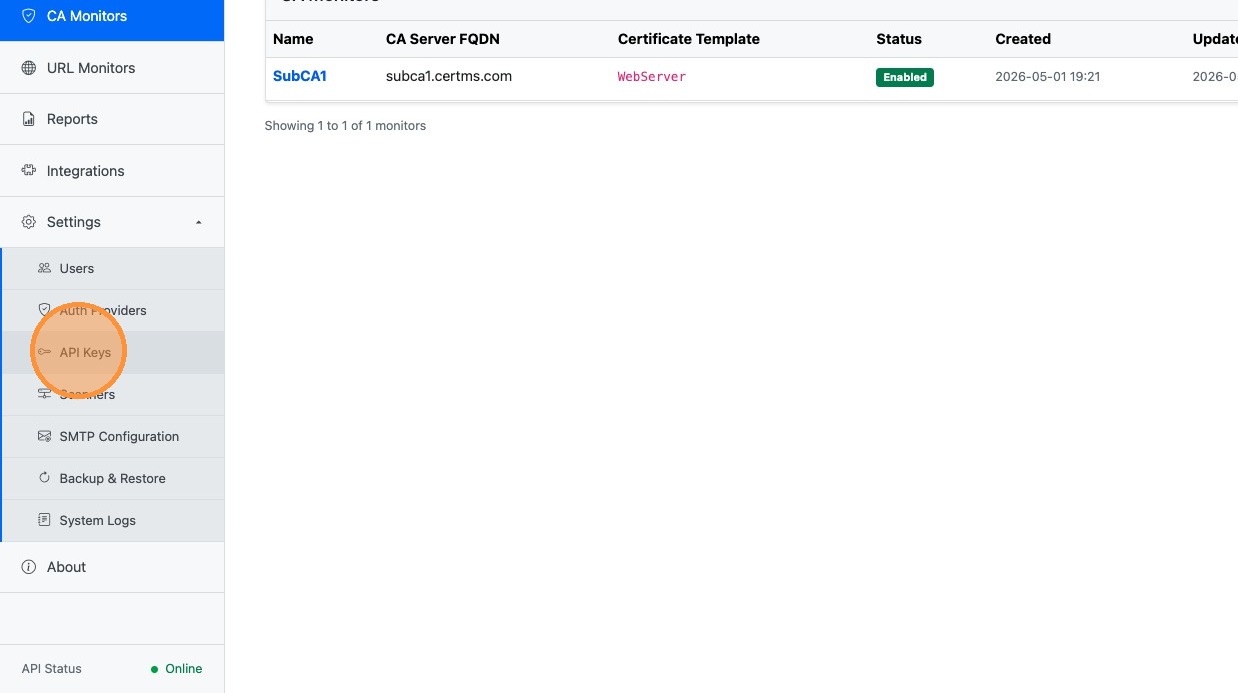
12. Open Settings menu
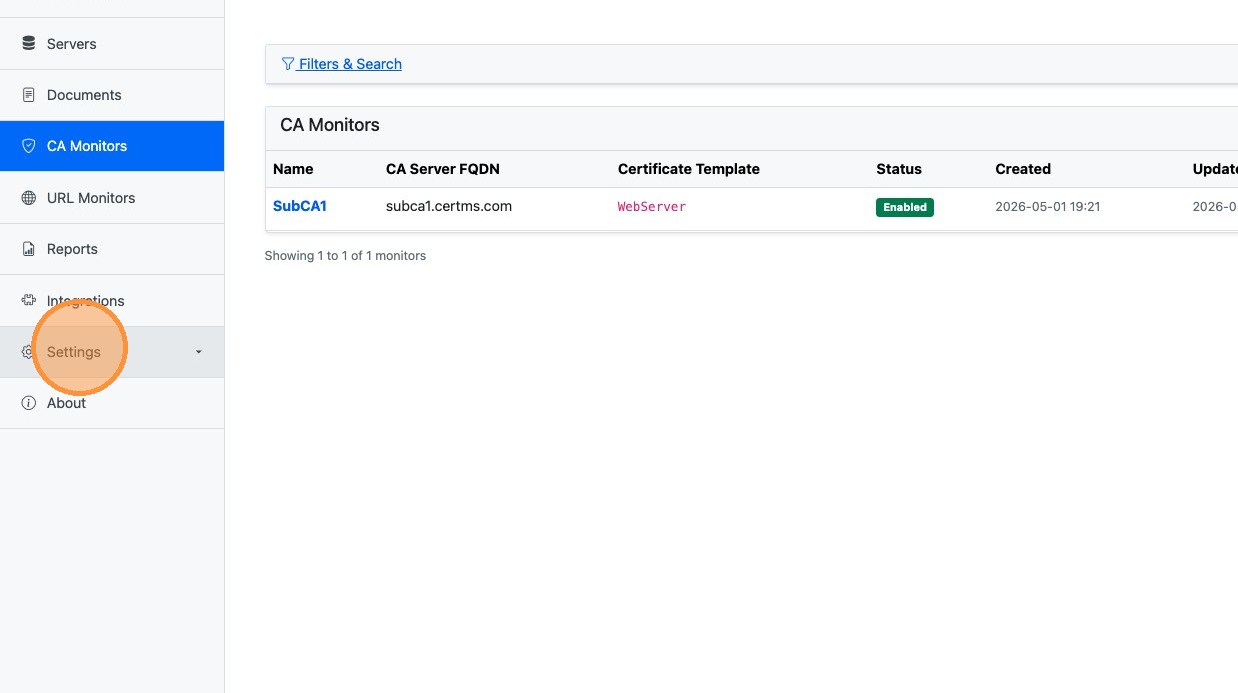
13. Select API Keys
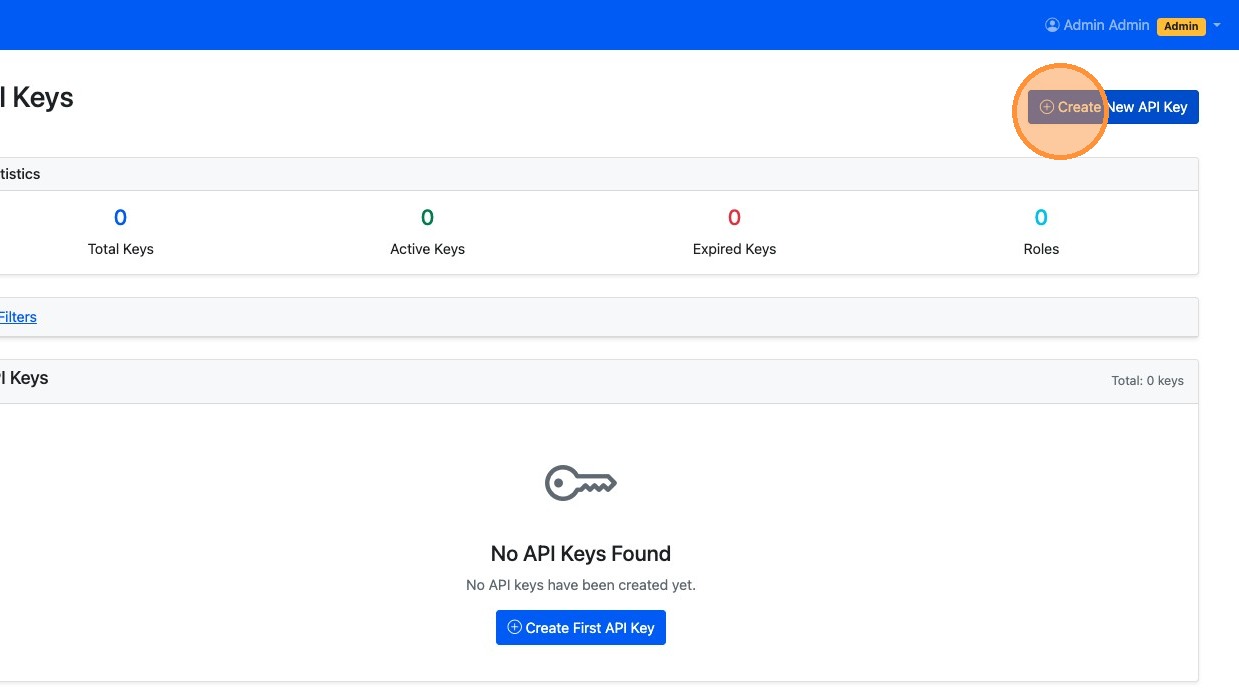
14. Click "Create New API Key"
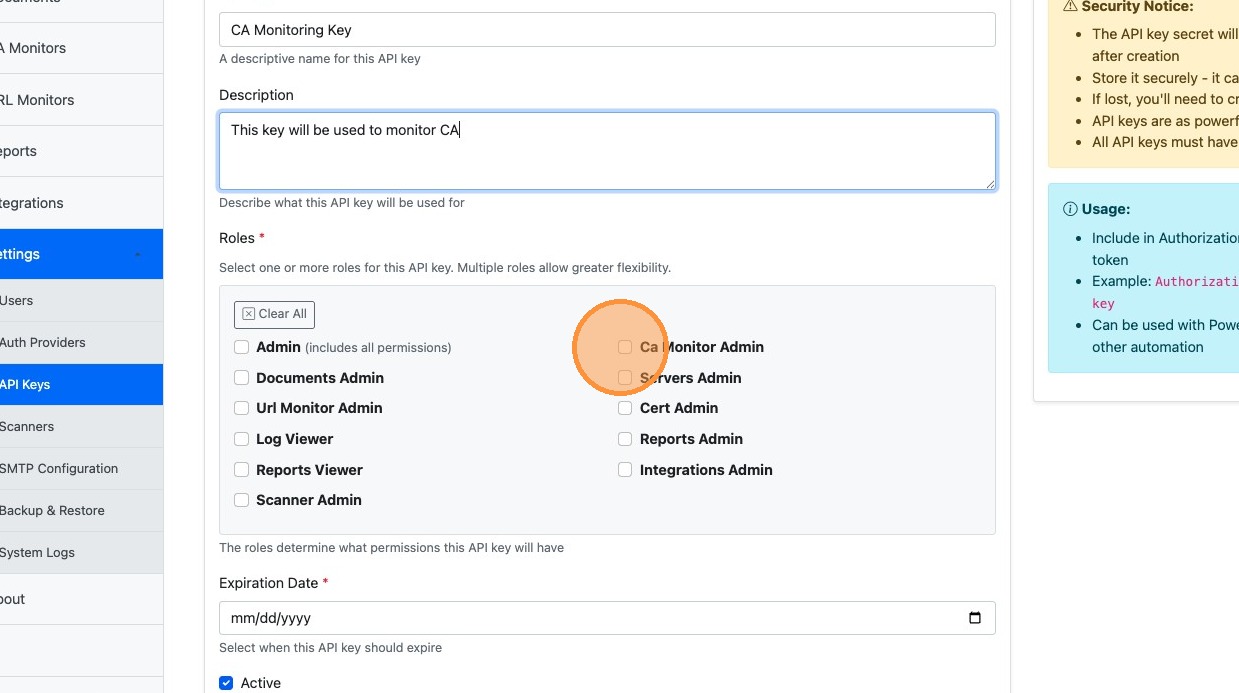
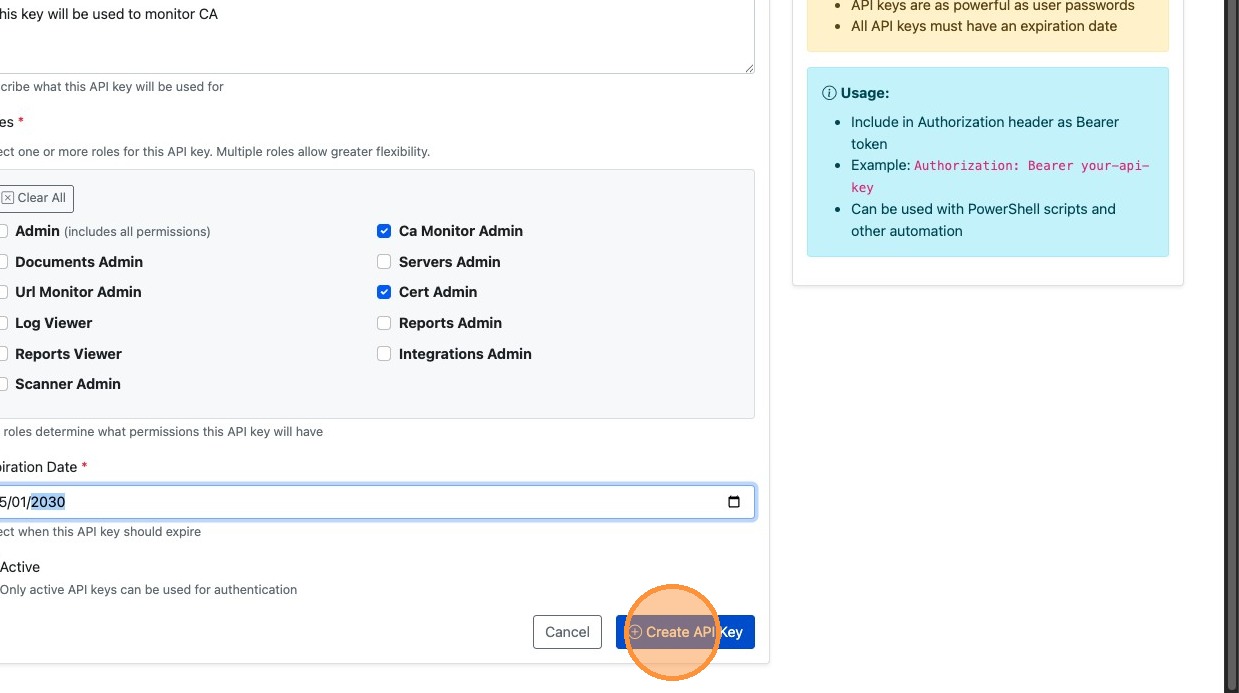
15. Enter "CA Monitoring Key" as the API key name
16. Type a description for the API key
17. Select Ca Monitor Admin role
18. Select Cert Admin role
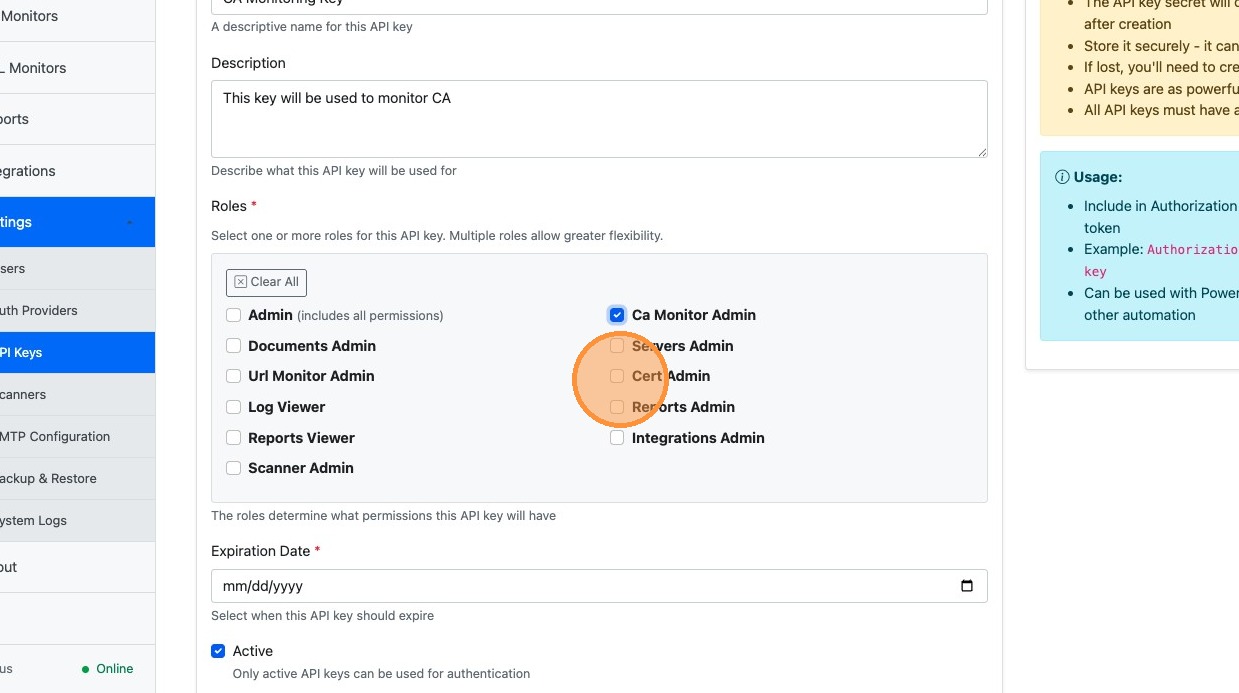
19. Set the Expiration Date to any date you want.
Alert: The API Key will expire on the date you set. You will need to rotate the API key before that date.
20. Click "Create API Key"
21. Click Copy to capture the API Key Secret
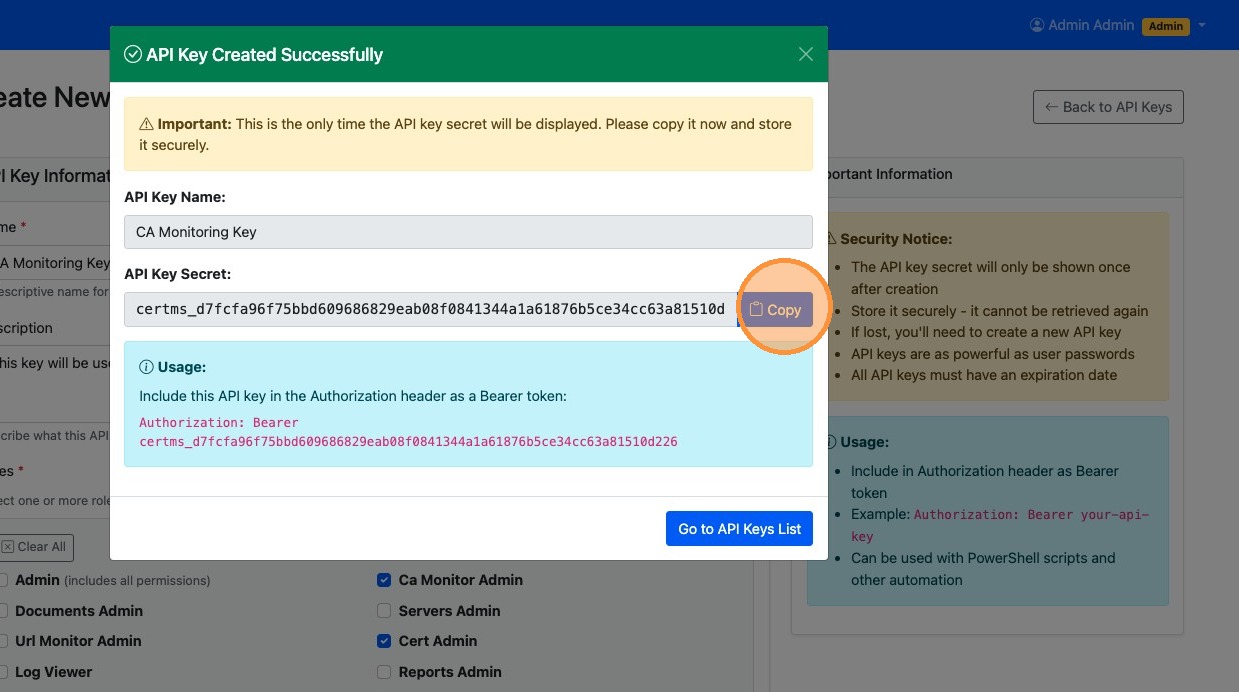
Alert: Once you close this window you will never be able to see this API Key again. Store it in a secure location
22. Copy the "ca_monitor_agent.ps1" file you downloaded in a previous step to your Sub CA
23. With a local admin account log into your Sub CA and install the CA Monitor Agent.
.\ca_monitor_agent.ps1 -ApiBaseUrl "https://acmecorp.certms.com/certms/ -ApiKey certms_d7fcfa96f75bbd609686829eab08f0841344a1a61876b5ce34cc63a81510d226 -Install
24. Confirm that the script executed without any errors. You should also now see certs start to come into CertMS within 5 minutes.